
YouTube Videos Lagging? How to Fix Lag with the Best Video Repair Tools
Good video playback improves online viewing, but interruptions can destroy the experience. Many people struggle with the YouTube videos lagging issue, which often causes endless buffering. Lag usually happens when video files are corrupted or when internet connections become weak. However, modern repair tools offer practical ways to restore video quality.
Fixing lag is easy with reliable video repair software available. Such tools identify the errors of the files, reconstruct the damaged information, and provide a smooth playback. The following article explores such tools to help you out.
Part 1. Understanding Why YouTube Videos Lag?
Before trying a video lag remover, you should understand why YouTube videos lag:
- Internet Issues: Sluggish or unstable internet will decrease the quality of video and cause more buffering. Wi-Fi can be slow when the bandwidth is shared between numerous users.
- Performance of the devices: Older devices can overheat during the playbacks, causing video stuttering frequently. Heavy background apps consume memory, leaving fewer resources for smooth video streaming.
- Out-Dated Browsers: An outdated browser lacks the optimizations required to handle YouTube’s advanced codecs. Using older versions prevents access to smoother playback features available in updates.
- Overloaded YouTube Servers: During peak hours, YouTube servers face traffic surges, slowing response times. Users worldwide experience lag, despite stable devices or strong internet.
- Accumulated Browser Cache: Excessive cache files make browsers slow, harming streaming efficiency, and responsiveness. Corrupted stored data sometimes interferes directly with smooth video playback operations.
Part 2. 7 Quick Fixes for YouTube Videos Lagging
Now that we know the causes, let’s explore 7 quick fixes to resolve the YouTube video lagging issue:
Method 1. Lower Video Quality
Resolution can be reduced to minimize buffering, which prevents video lagging on YouTube. Bad quality streams use less bandwidth, providing a smooth playback even in unstable internet. Video resolution can be changed to enhance streaming without any complex technical expertise. To reduce the video quality to allow a smooth playback, follow the following steps:
Step 1. First, open YouTube, select the “Settings” icon and click on the “Quality” option.
Step 2. Now, choose a lower resolution, such as “480p” or “360p,” for smoother playback.
Method 2, Clear Browser Cache and Cookies
Old cached data interrupts smooth playback, but a reliable video lag remover helps. Removing cookies and cache frees memory, improves browser speed, and restores streaming quality. This process often eliminates disruptions while ensuring that the websites’ function is consistent. Consider using the guide below to clear browser cache and cookies for better performance:
Step 1. Start by opening the browser settings and navigating to the “Privacy and Security” option in the left-side menu. From the right side, select the “Delete Browsing Data” option to open a dialogue box.
Step 2. In the “Delete Browsing Data” window, choose “Cache Images and Files” and “Cookies.” Then, click the “Delete Data” button to clear the browser cache and cookies.
Method 3. Update Browser
Using outdated browsers can cause playback problems, which can be resolved by updating to a video repair tool. This optimizes the rendering engines, corrects bugs, and enhances compatibility. The latest version ensures that the video stream runs smoothly without any interruptions. To upgrade your browser to stream smoothly, you need to follow the following steps:
Step 1. Firstly, open “Menu” from the top right, then hover your cursor over “Help> About Google Chrome” and let the browser check for updates automatically.
Step 2. Next, apply the updates found and hit the “Relaunch” in the About Chrome section.
Method 4. Disable Hardware Acceleration
Hardware acceleration creates stutters during playback and causes YouTube videos to lag. Turning it off allows the browser to use software rendering, which reduces flickering issues. This change improves streaming consistency, especially on older or lower-powered computer systems. To disable the hardware acceleration, consider following the instructions below:
Instructions. Start by simply opening the “Settings” in your Chrome, then select the “System” option. Next, click on the “Turn Off” option to disable hardware acceleration from the right.
Method 5. Disable Unused Extensions & Ad Blockers
Extra extensions may slow YouTube videos, but a video lag remover restores streaming. Extra add-ons can drain resources, while blockers may sometimes break website scripts that load content. Disabling these ads improves browser stability, restores speed, and allows seamless YouTube viewing. Follow these steps to manage browser extensions for smoother YouTube playback:
Step 1. First, click on the 3 dots in your browser to open the “Menu” list and select the “Extensions> Manage Extensions” option.
Step 2. Now, click on the “Disable” button or choose the “Remove” option to disable unused extensions.
Method 6. Try a Different Browser or Private Mode
Some browsers may conflict with videos, but testing with a video repair tool can help resolve the issue. Switching browsers quickly reveals if compatibility issues cause streaming delays or playback failures. Private mode, cached data, or settings could be causing disruptions on YouTube. Adhere to the steps below to test playback using private mode on Chrome:
Step 1. First, launch Chrome and click on the “3 dots” icon in the corner to select “New Incognito Window” from the dropdown menu. You can also use shortcut keys if easier: “Ctrl + Shift +N” for Chrome and “Ctlr +Shift + P” for Firefox.
Step 2. In the “New Incognito Window,” open YouTube and play a video to test playback.
Method 7. Check Network Connection & Restart Router
Slow internet causes lagging, but restarting the router works like a built-in video lag remover. A quick reset often stabilizes Wi-Fi, clearing disruptions that interrupt streaming playback. Speed tests confirm whether the internet performance meets the requirements for smooth video. To check the network connection and restart the router, follow the instructions below:
Instructions. Run a speed test to check the connection status, then unplug the router for 60 seconds. Next, reconnect the power and wait until the restart is complete. Then, connect the device to Wi-Fi and test video playback.
Part 3. When a Video File Itself Is Corrupted? Fix Corrupted Or Glitchy Downloaded YouTube Videos
Sometimes, YouTube video lagging problems are not caused by internet or device issues. Rather, the video file itself can be corrupt or incomplete upon downloading. When this occurs, a video repair tool comes in handy in such cases to repair files and resume playback. Repairit is an easy-to-use program that repairs damaged or malfunctioning downloaded YouTube videos.
It checks files that are damaged, fixes the structural errors and recreates the playable formats fast. Besides videos, it provides support for a vast variety of file formats for repair. This platform lets you preview the repaired files before you download them. Additionally, users can restore damaged files stored in over 1 million storage devices.
Key Features
- Maintain Original Quality: It preserves the video quality and ensures the audio stays in sync with the video.
- Batch Repair: This platform allows you to fix many videos at the same time with one process.
- Device Compatibility: Use this tool and repair video files saved in your hard drive and storage cards.
Stepwise Guide to Fix Corrupted or Glitchy Downloaded YouTube Videos
If your downloaded YouTube video does not play, follow these steps to fix it using Repairit:
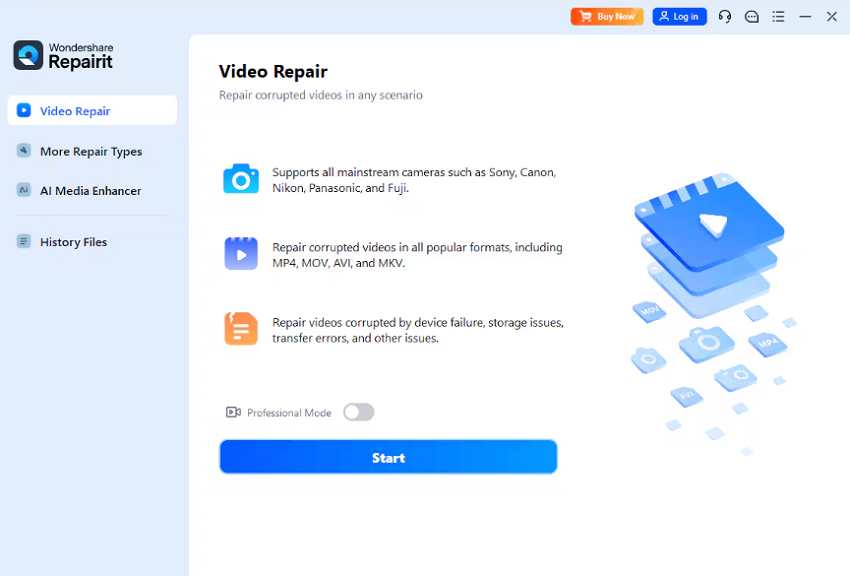
Step 1. Add Corrupted Video
Open the Video Repair tool and click the “Add” button. Select the corrupted video, then press “Start” to begin the repair.
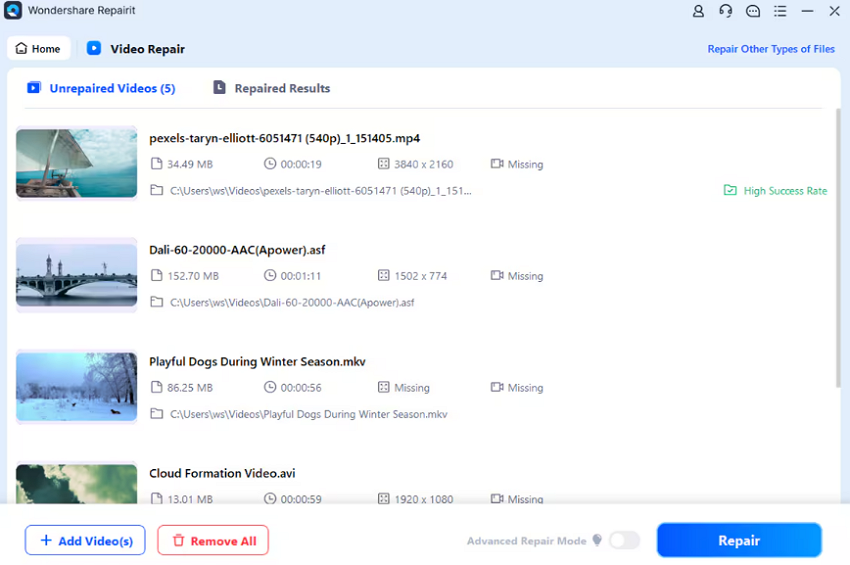
Step 2. Start the Repair Process
Once the corrupted video is added, click the “Repair” button to start fixing the video.
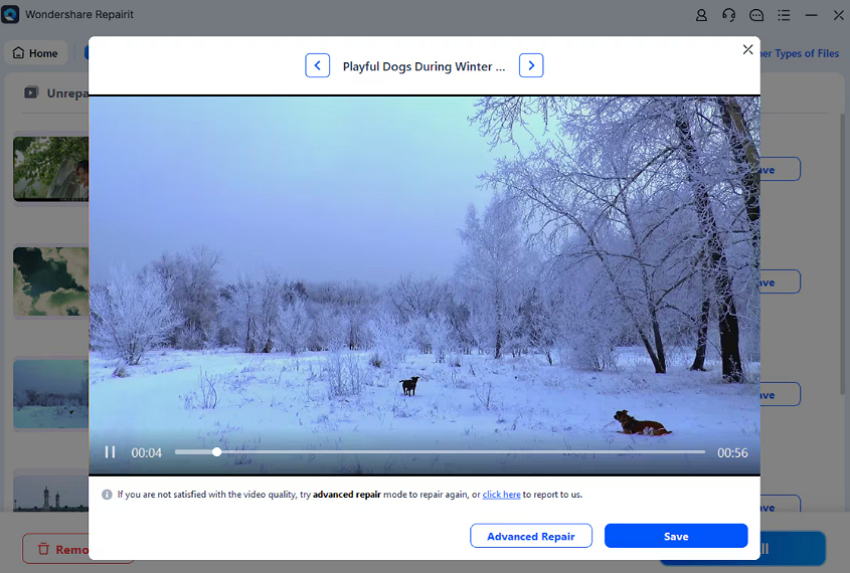
Step 3. Preview and Save the Results
When the repair finishes, preview the video to confirm the results. Then click “Save” to download the repaired file onto your device.
Conclusion
To conclude, YouTube video lagging can occur for many reasons, as explained in this guide. We have discussed practical methods and shared effective approaches for restoring smooth playback. Still, corrupted downloads require specialized help that normal fixes cannot properly resolve. For these problems, Repairit is the best video repair tool solution.