
Have you ever questioned yourself why transferring files from an iPhone to a PC is like a puzzle that has lost pieces? Although applications such as iTunes or Windows File Explorer can do the task, they tend to leave you in a tangle of restrictions and slowness. Therefore, in this guide, we’ll uncover the reality of these methods while introducing you to a foremost solution to transfer files from iPhone to PC.
Part 1. Basic Methods to Transfer Files from iPhone to PC
For iPhone data transfer to PC, review this section and have a glance at a few basic methods with listed limitations:
- Transfer Files from iPhone to PC with a USB Cable
It is a stable and simple method that amateurs can use because it can access files directly and does not require any internet connection. Moreover, USB transfer is the best way to transfer images or videos in bulk, either through copying or drag and drop. So, as it works across all versions of Windows, here is how you can use it for iPhone to PC file transfer:
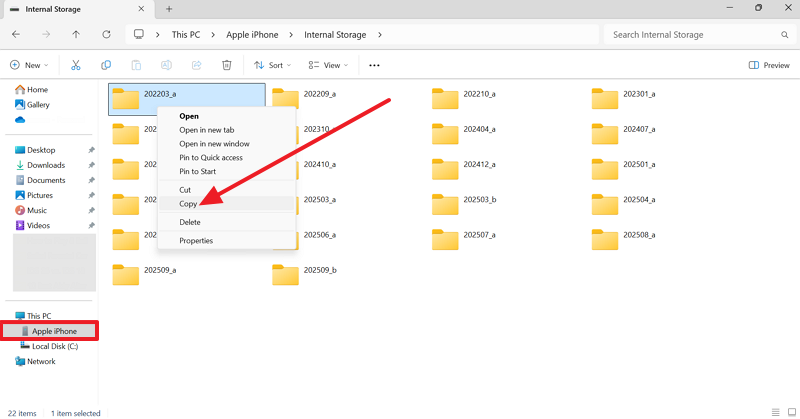
Step 1. Connect the iPhone to the PC, locate the iPhone in the Devices section, and right-click on the desired images or videos to pick the “Copy” option.
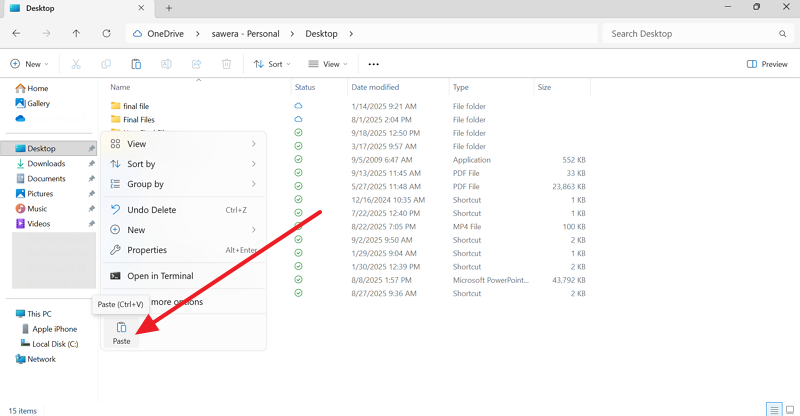
Step 2. Now, head to the folder where you want to save the file, press “Ctrl + V,” or right-click to choose the “Paste” option.
Cons
- Older USB ports make transferring large files slow and tedious.
- iPhone must be unlocked; trust approval is required every time.
- Transfer Files from iPhone to PC Using iTunes or Finder
You can also opt for iTunes or Finder for iPhone data transfer to PC because it allows users to sync music, videos, photos, and other media between iPhone and computers. These solutions also give you the option for automatic backups and ensure data is safely saved once the mentioned steps are followed:
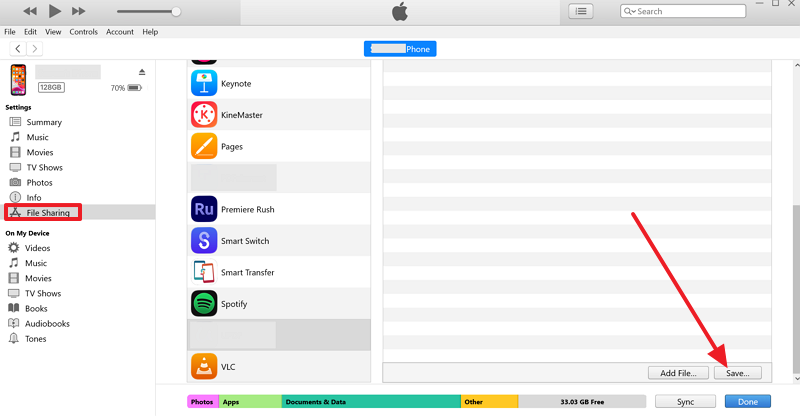
Instructions. After connecting your device to a PC, select the “Phone” icon in iTunes and navigate to the “File Sharing” tab. There, select the app from which you want to fetch a file, press it, and scroll down to pick the “Save….” button.
Cons
- You have to pick files from each app separately.
- Users can overwrite existing content accidentally.
- Transfer Files from iPhone to PC via iCloud
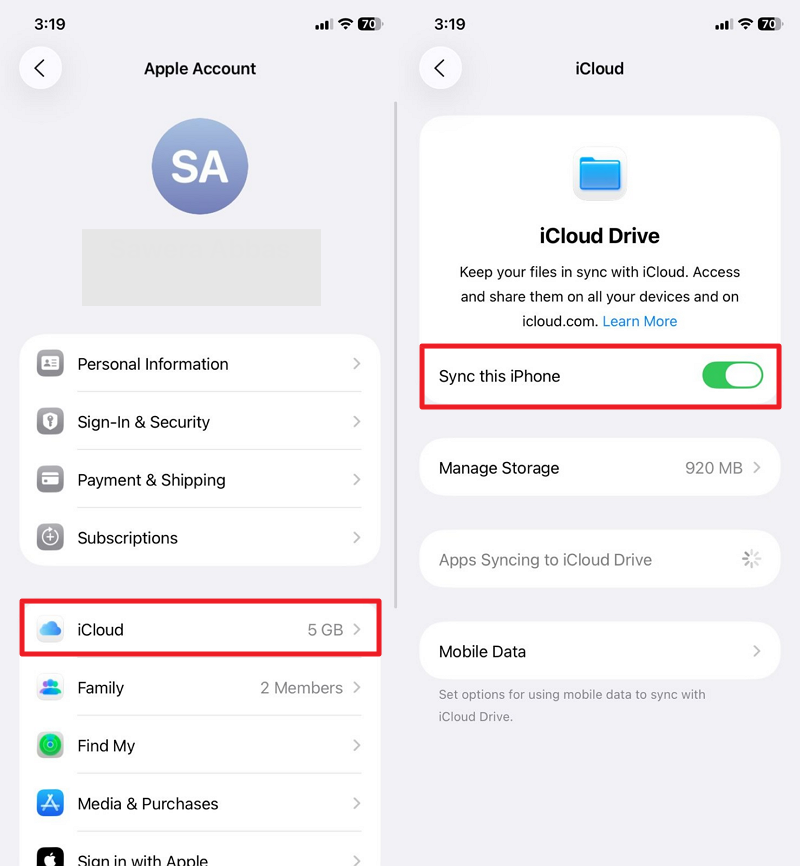
When knowing how to transfer files from iPhone to PC, iCloud allows you to transfer files wirelessly and securely. Besides, it automatically synchronizes with all Apple devices and Windows PCs through iCloud Drive. Users can access, edit, or share files any time, on any device, but only after they have been shared through illustrated steps:
Step 1. Press your name on the Settings app to choose “iCloud” and enable the “iCloud Drive” option. Following this, add all the files you want to export to iCloud Drive using the Files app.
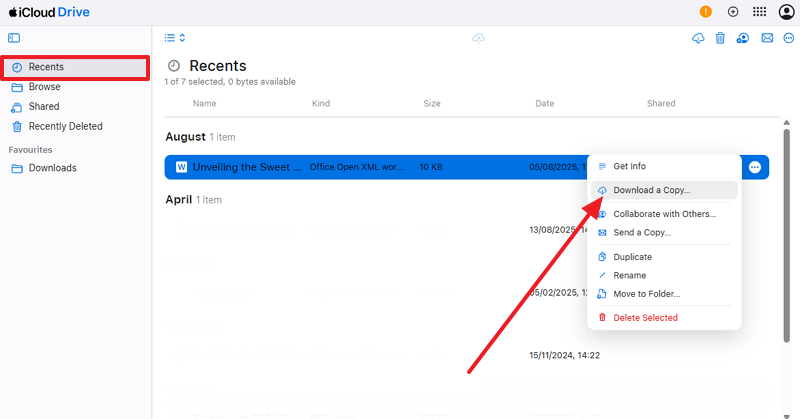
Step 2. Now, sign in to iCloud.com, go to iCloud Drive “Recent” tab, and press the “Three Dots” icon to choose the “Download a Copy…” option.
Cons
- Free iCloud storage is only 5GB; upgrades require payment.
- Transfers rely on stable internet; weak Wi-Fi can interrupt files.
- Transfer Files from iPhone to PC Using Email or Messaging Apps
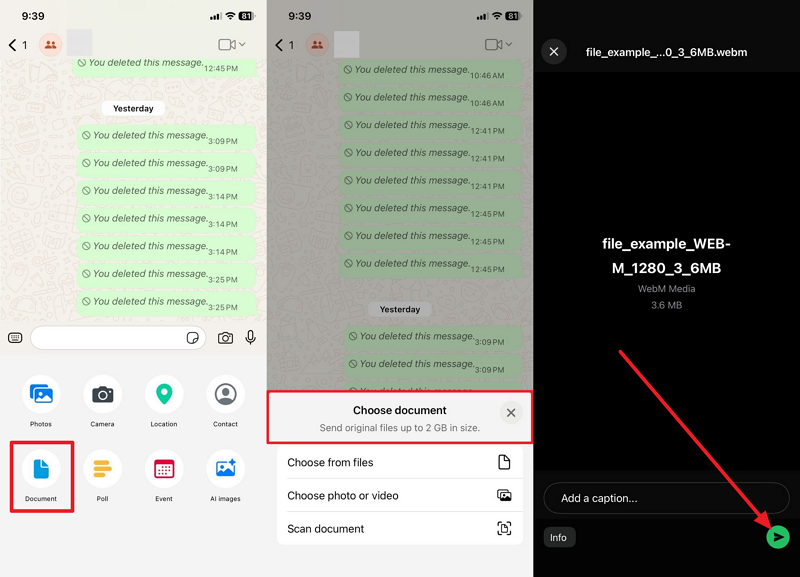
In terms of iPhone to Windows file transfer, messaging apps like WhatsApp or Email can save the day too. When using WhatsApp, users can send photos, videos, documents, or messages to contacts, groups, or even themselves. Later, they can access them via WhatsApp Web or Desktop, as shown in the guide below:
Step 1. On iPhone, choose the “+” icon in the chat and opt for the “Documents” option from the pop-up. After that, pick the desired option under the “Choose Document” section, upload the file, and hit the “Send” button.
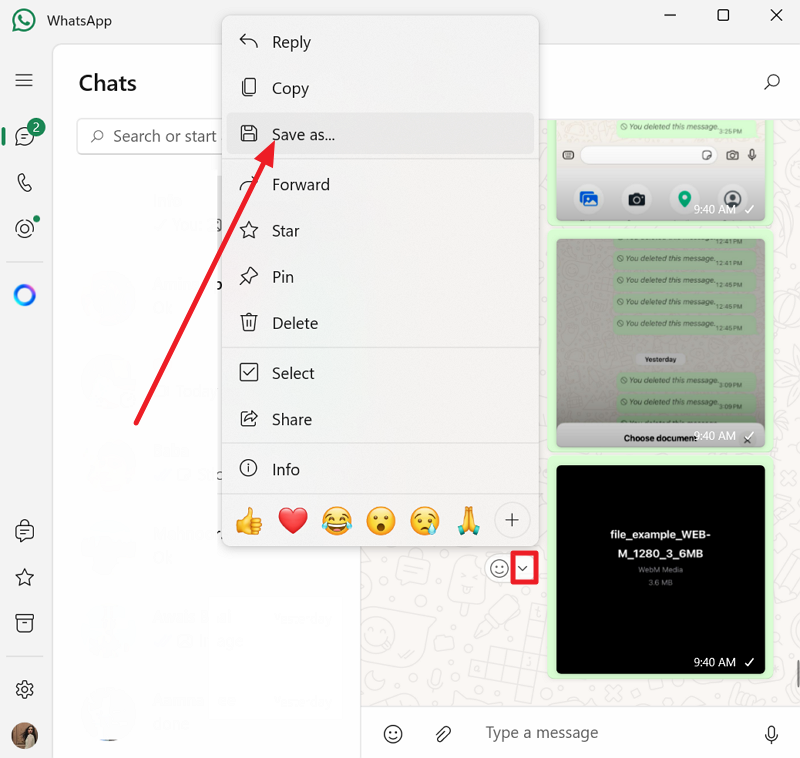
Step 2. Whether you have sent it to someone or yourself, log in to WhatsApp Web or Desktop, expand the given menu beside file, and choose the “Save As…” option.
Cons
- WhatsApp limits attachments to 2GB; extremely large files cannot be transferred.
- Exporting chats or media is slow and done individually.
- Transfer Files from iPhone to PC with Cloud Storage Apps
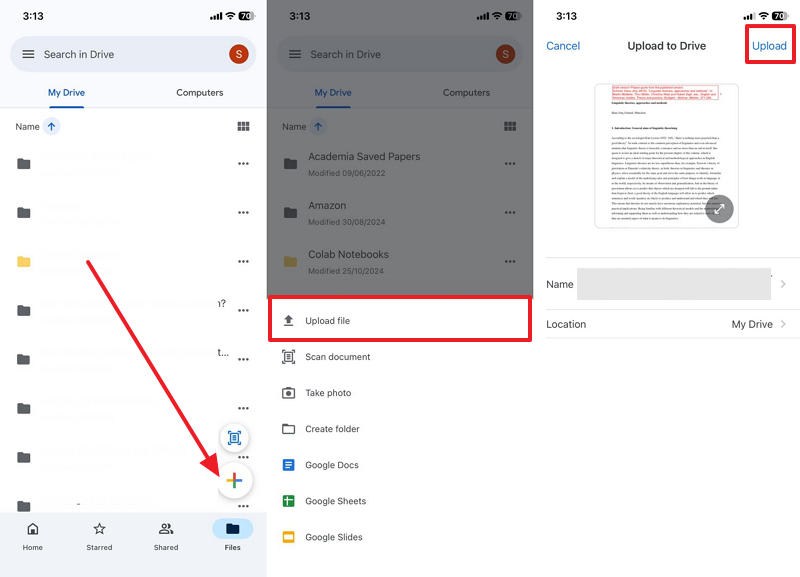
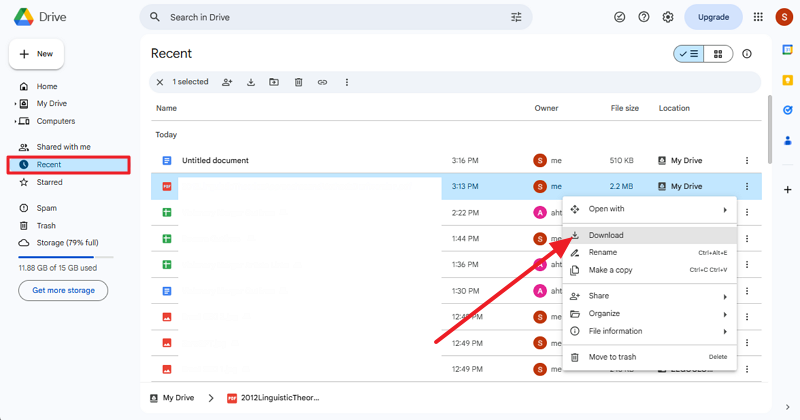
For iPhone to PC file transfer, you can also use cloud storage applications like Google Drive, since it offers a convenient, secure, and versatile way. It works across platforms, so files uploaded from an iPhone can be accessed on Windows, Mac, or any device. With 15GB of free storage, users can store large files without losing quality, once shared via the mentioned guide:
Step 1. Press the “+” icon, choose the “Upload File” option to pick the document, and send it to the PC by pressing the “Upload” button.
Step 2. On your PC, navigate to the “Recent” folder, click the “Three Dots” icon next to the uploaded file, and select the “Download” option.
Cons
- Free 15GB storage fills quickly; paid upgrade needed sometimes.
- Daily upload max 750GB; single file up to 5TB.
Part 2. The Best Solution to Transfer Files from iPhone to PC – MobileTrans
When all the solutions fall short, MobileTrans offers you the convenience to move data from iPhone to PC in just a few taps. The tools ensure zero data loss or file compression, and transfer files by establishing a secure USB connection.
Unlike other tools, it supports bulk sharing where users can choose multiple data types to export in less than a minute. Additionally, for phone-to-phone transfer, the tool supports over 6,000 mobile devices running on Android and iOS systems. When using this tool, you can share 18+ types of data, including photos, messages, videos, and more.
Key Features
- WhatsApp Transfer: This feature enables you to transfer WhatsApp data from Android to iPhone, iPhone to iPhone, or iPhone to Android in just a few steps.
- Simple, Fast, Secure: This tool requires no learning curve and ensures data is shared quickly without overwriting existing data.
- Transfer Apps Between Devices: Besides images, videos, and files, users can also use it to share apps to new phones, to limit the installation of new ones.
Transfer Files from iPhone to PC With MobileTrans – Simple Guide
To know how to transfer files from iPhone to PC with MobileTrans, here is a simple step-by-step guide for you:
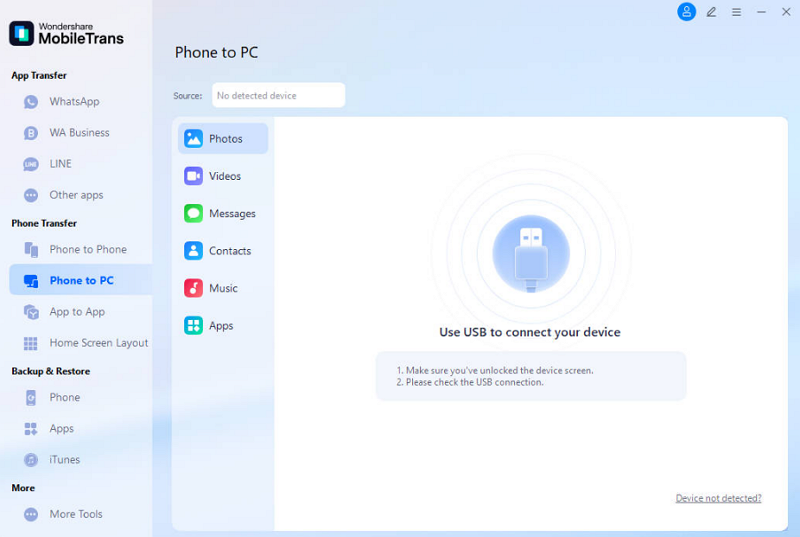
Step 1. Connect iPhone for File Sharing
Connect the iPhone to the PC after launching the tool and pick the “Phone to PC” feature under the “Phone Transfer” module.
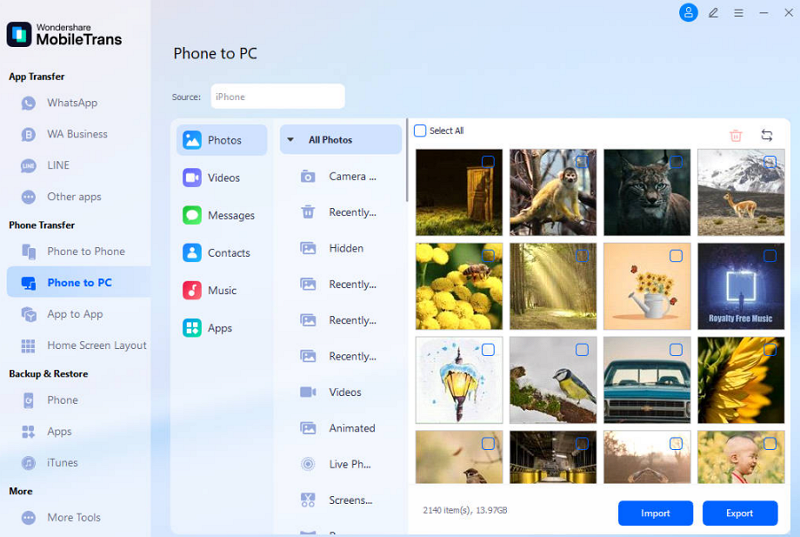
Step 2. Trust the Device and Choose the Data to Export
After the tool detects the device by pressing the “Trust” button on the iPhone, select the data and click the “Export” button.
Use Cases of MobileTrans
While knowing the seamless solution for iPhone data transfer to PC, review the listed use cases of this tool to determine its hype:
- MobileTrans can back up all iPhone data, like messages, photos, apps, and documents, to a PC.
- Easily migrate data to new phones or replacements, and share nearly all data types in one session efficiently.
- It can also be used to transfer WhatsApp messages, media, business chats, and deleted data.
- The tool has the facility to handle large file sharing and multiple types, faster than the cloud or messaging-based methods.
- Transfers data without Wi-Fi, cloud accounts, or mobile data, working entirely offline for convenience.
Conclusion
Summing up, if you want to know how to transfer files from an iPhone to a PC, review the guide and explore the listed solutions. While doing so, if you want a secure, offline, and compatible solution, we recommend using MobileTrans.
Unlike other methods, MobileTrans provides faster bulk transfers, supports more than 18 data types, and works entirely without the internet. It not only ensures zero data loss but also protects privacy with an encrypted connection.