
You feel like using an Android device for so long is limiting you from exploring further, so you decided to switch it up with the latest iPhone. However, one of the significant challenges in this transition is transferring essential data, especially text messages. Thankfully, this article is here to provide you with the best methods to transfer text messages from Android to iPhone.
Part 1. The Emotional and Practical Importance of Transferring Text Messages from Android to iPhone
Here’s an explanation of why it is important to learn how to transfer messages from Android to iPhone and what it means for users:
- Preserving Memories: Users like to keep their personal text messages, and transferring them allows them to keep them intact.
- Emotional Reassurance: It might feel empty for users who have no previous messages, so moving them reassures them.
- Smooth Communication: If you transfer previous text messages, your conversations remain accessible to you, offering a smooth communication flow.
- Access to Critical Information: Texts often hold essential details, like addresses, passwords, and more, which users need to keep close.
- Simplify Message Management: By moving the messages to the new iPhone, you avoid juggling devices for reference information.
Part 2. The Fast Track: Using MobileTrans to Transfer Text Messages from Android to iPhone
After learning about the various reasons why you need to transfer text messages from Android to iPhone, what’s the best software that provides a seamless transfer process? MobileTrans is here to simplify the process of moving data between Android and iPhone devices. Unlike the manual methods, it lets you transfer different types of data without overwriting the existing content.
Moreover, you can quickly transfer your entire text message history along with other important data without the need to reset the target device. You can connect the two devices with USB cables and facilitate a secure, efficient transfer process. Besides, it supports not only trendy Android and iPhone devices but over 6,000+ devices, while keeping the data private and safe from any risks.
Key Features
- Multi-Data Transfer: It lets you transfer more than 18 types of data, including messages, photos, videos, and more.
- Secure and Private: This software uses an encrypted data transfer without using any third-party server, thus safeguarding user privacy.
- Backup and Restore: MobileTrans has a backup and restore feature, which safeguards the data on the computer and lets you restore it whenever.
Manual to Transfer Messages from Android to iPhone with MobileTrans
In the following section, you can find how to transfer contacts from Android to iPhone in easy steps with the help of MobileTrans:
Step 1. Connect Devices and Open Phone to Phone Feature
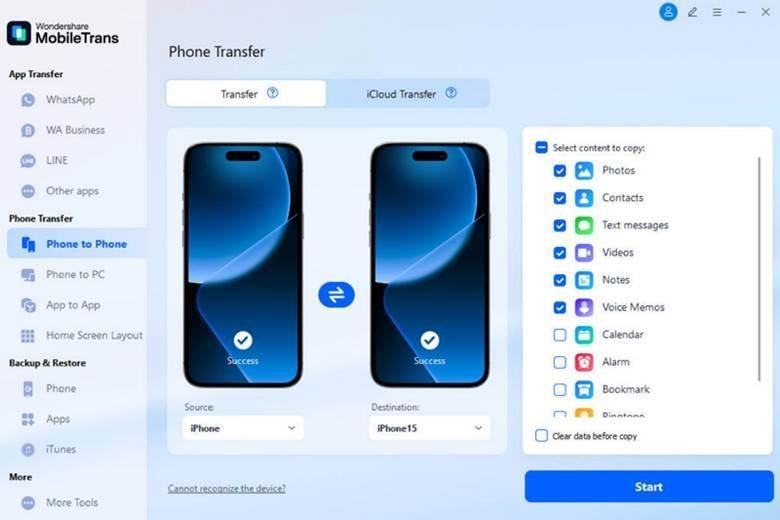
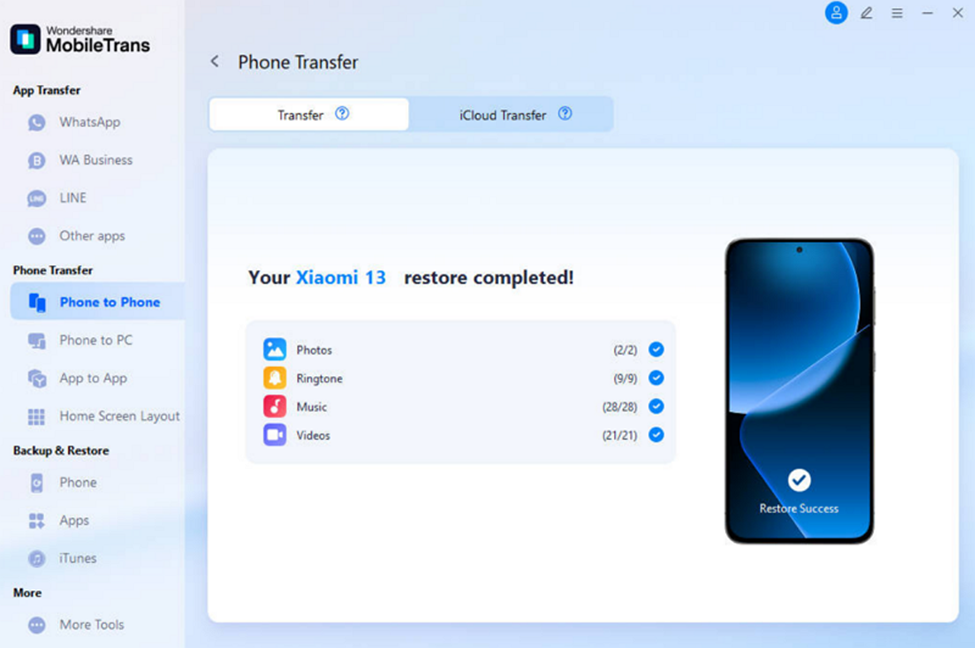
Once MobileTrans is installed and launched, go to the “Phone to Phone” tab, and connect the Android and iPhone devices using original USB cables.
Step 2. Pick Messages and Initiate Transfer Process
When the software detects the devices, tick the “Text Messages” option from the “Select Content to Copy” section, and click “Start.”
Step 3. Wait for Successful Transfer of Messages
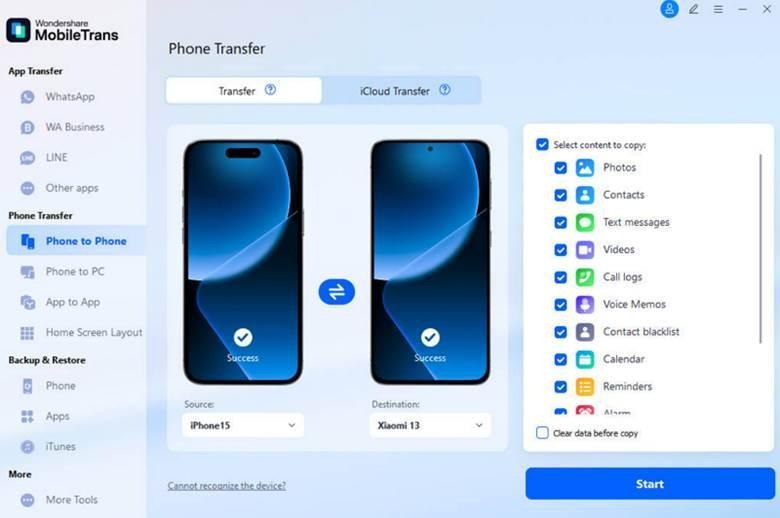
When the transfer process is completed, you can unplug the phones and check your iPhone for messages.
Part 3. Consider Email to Transfer Text Messages from Android to iPhone
If you’re looking for other ways to transfer messages, try these 3 ways to transfer messages from Android to iPhone after setup:
1. Share Messages via Email
Users can try sending their important and selective messages by email from Android to iPhone. This method is relatively straightforward and lets you choose which messages to move, thus avoiding clutter and unnecessary accumulation of texts. Furthermore, you don’t need to rely on installing third-party software. Now, go through these steps and learn how this process is done:
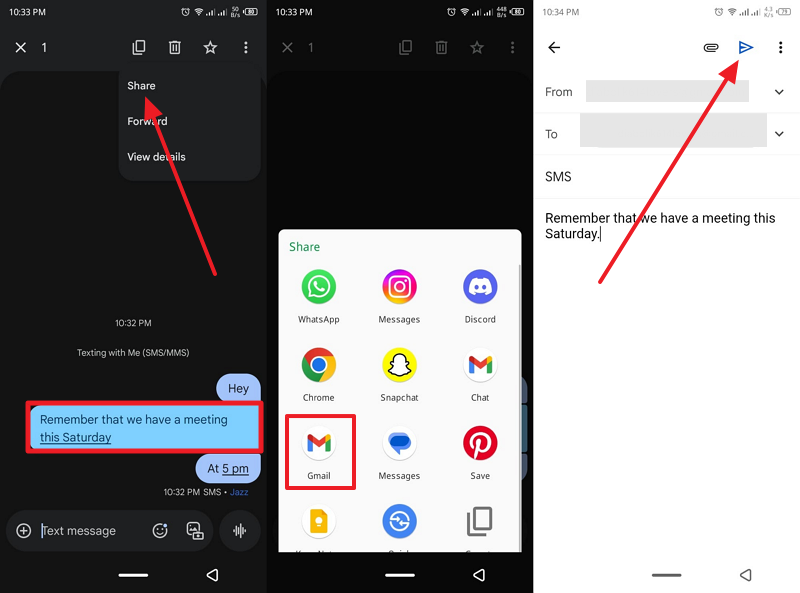
Step 1. Open chat on your Android’s “Google Messages,” select the text, and press the three vertical dots. Now, choose “Share,” pick “Gmail,” and send.
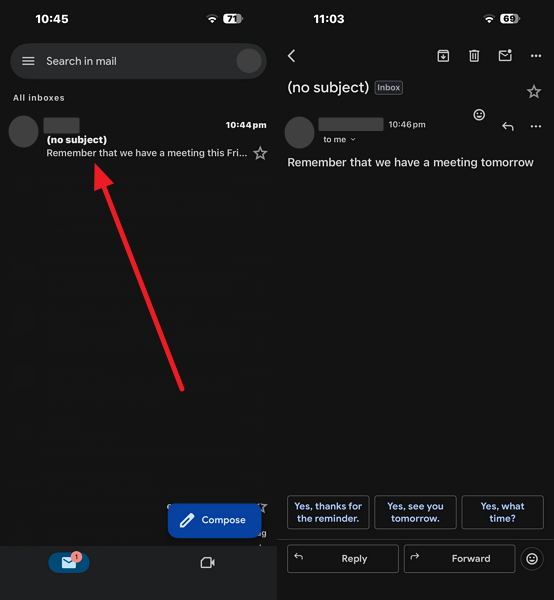
Step 2. After sending the text, open Gmail on your iPhone device, and you can access the text messages.
Limitations
- Cannot share multiple messages at the same time.
- Email formatting may sometimes alter the message content.
2. Take Screenshots
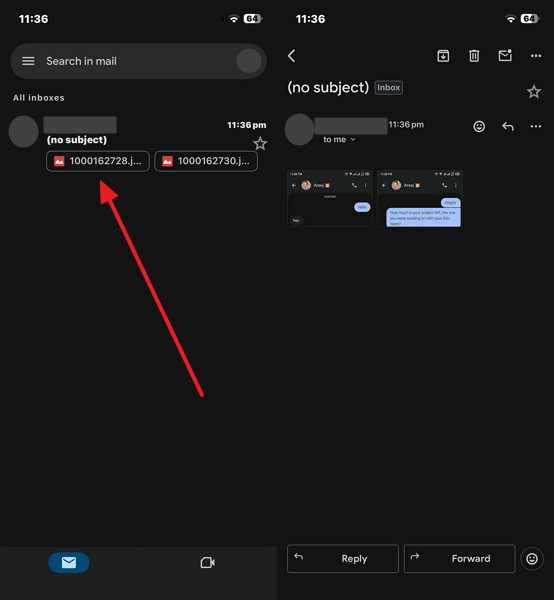
Another approach to transferring text messages from Android to iPhone is to take screenshots of messages on the Android phone. You can later email those images to yourself and receive them on your iPhone email account. Users can take multiple screenshots of important messages without needing to manually select text. Go through the following steps and learn how you can send text screenshots via Email:
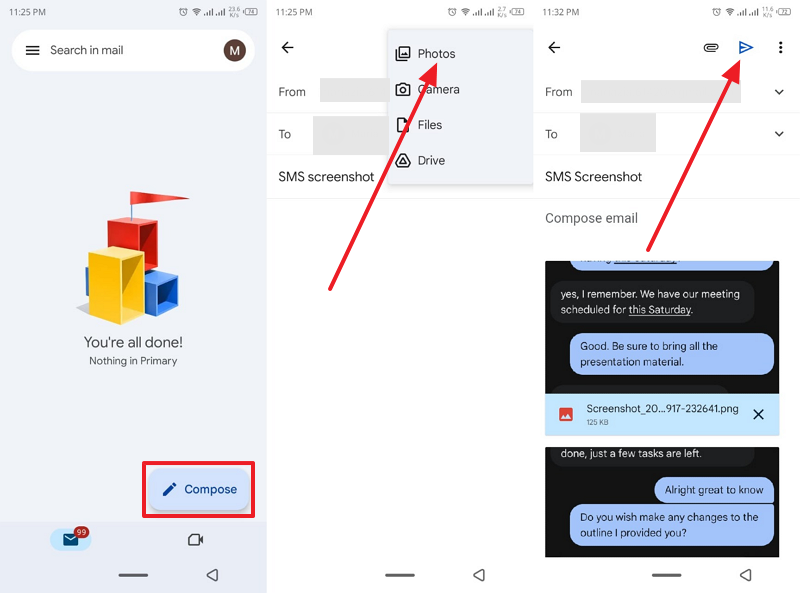
Step 1. Open email, press the “Compose” button, tap the “Three Vertical Dots” icon, choose the “Photos” option, and send the screenshots after selecting them.
Step 2. Head to the iPhone email client app, log in with the target account, and access the email with screenshots.
Limitations
- Message screenshots lose interactivity.
- A high volume of screenshots creates large attachments.
3. Screen Recording
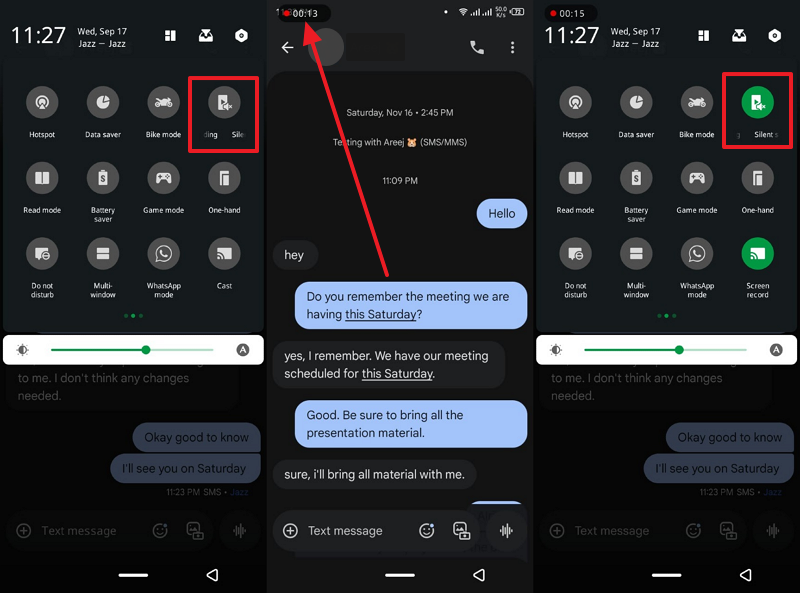
If you want to move large numbers of messages, then the following similar technique is to record your messaging screen. With this method, users will be able to recall the timestamps, dates, and durability of the messages rather than simple screenshots. Once recorded, users can easily email them and receive them from their new iPhone device. The steps to transfer SMS from Android to iPhone are given below:
Step 1. Access chat from the “Message” app on Android, swipe down the screen, choose “Screen Recording,” and stop recording when you’re done.
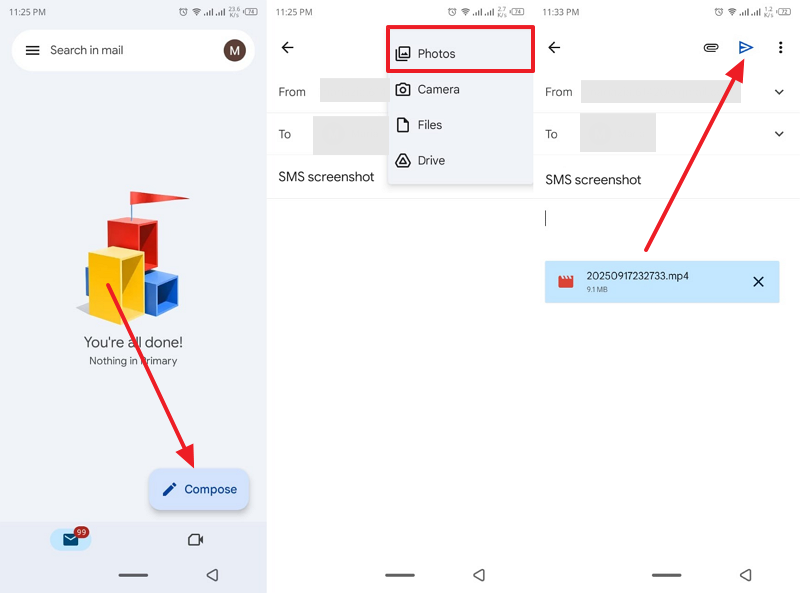
Step 2. Now, head to the email app, press “Compose,” and enter your target email address. Next, tap the “Photos” choice, upload the recorded video, and hit “Send.”
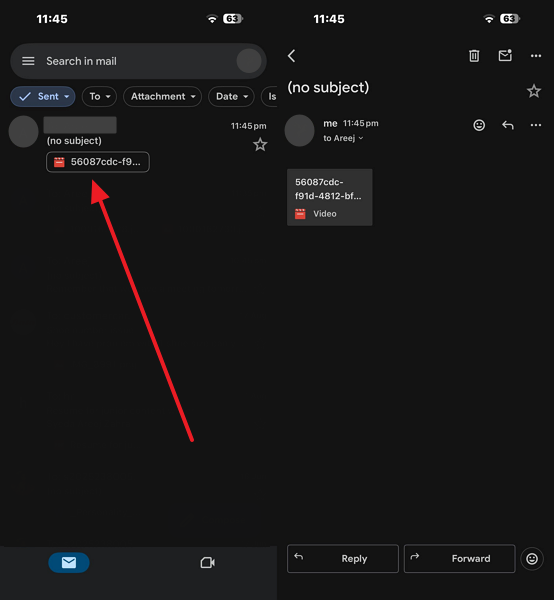
Step 2. Once the email is sent, receive the message recording on your iPhone email client app with ease.
Limitations
- Slows down transfer when the video files are large.
- Watching long videos to find specific message content can be cumbersome.
Part 4. Use Move to iOS to Transfer Text Messages from Android to iPhone
Using this app allows users to securely move messages, photos, calendars, and more over a private Wi-Fi connection. Moreover, this app reduces the complexity of switching platforms and offers an automated transfer process during the initial iPhone setup. It doesn’t require a computer, and preserves your essential data and settings. Moving forward, let’s look at the following steps on how to transfer messages from Android to iPhone:
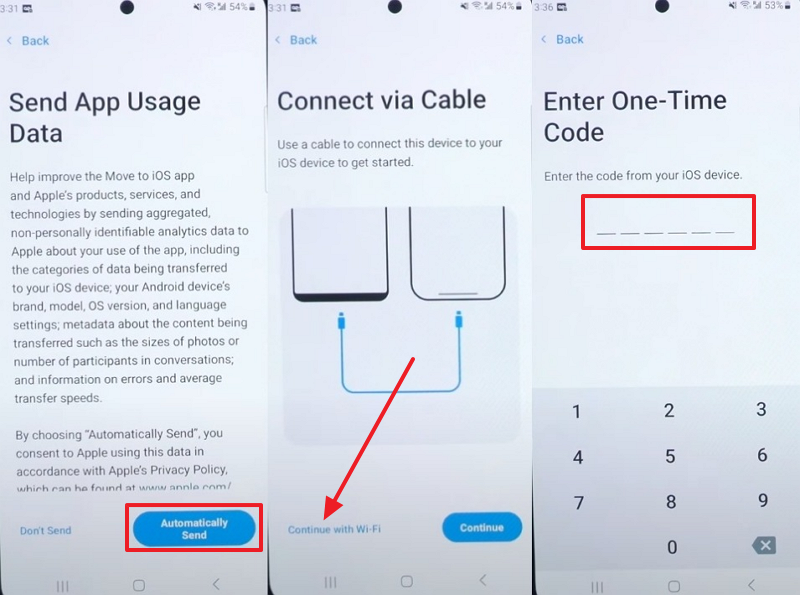
Step1. Press the “Move to iOS” app on Android, tap the “Automatically Send” button, and hit “Continue with Wi-Fi,” to access the “Enter One-Time Code” screen.
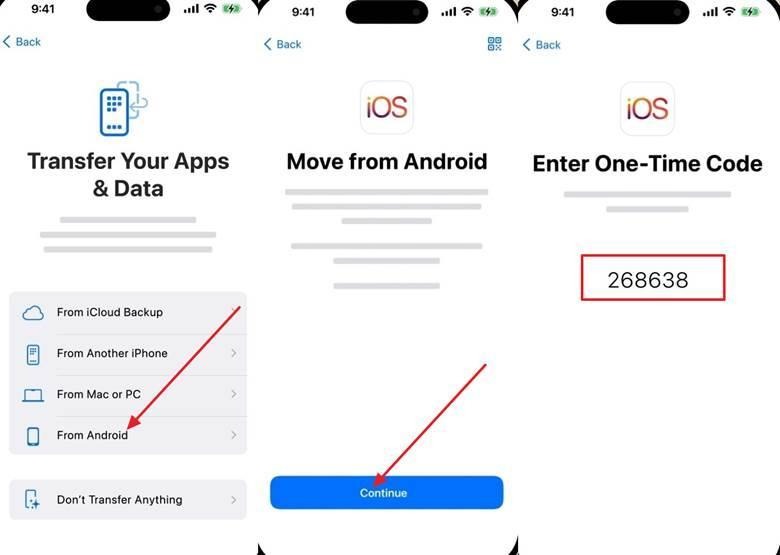
Step 2. On your iPhone device, access the “Transfer Your Apps & Data” screen, and choose the “From Android” option to proceed. Once the “Move from Android” screen appears, hit “Continue,” and access the code.
Step 3. Next, enter the code on the Android screen, access the “Select Items to Transfer” screen, and tap “Allow” to send “Messages.” After that, hit the “Continue” button on Android, and when the messages are transferred to the iPhone, press “Continue.”

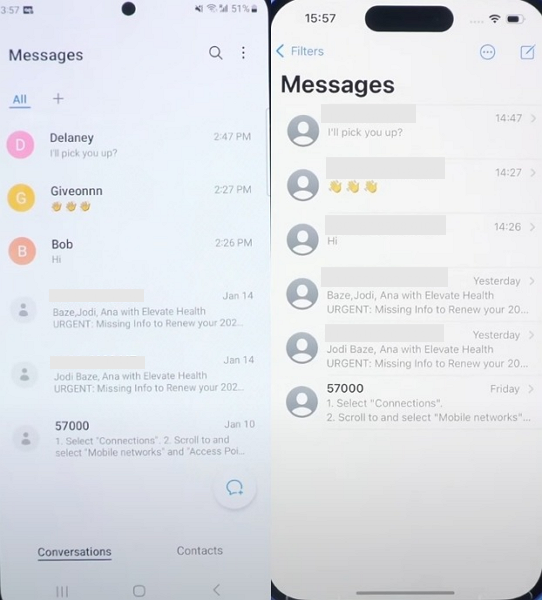
Step 4. Moving forward, complete all the required settings on the iPhone device, like adding your “Apple Account” and more. Next, open the “Message” app on both devices and successfully access all the messages.
Limitations
- Sometimes, multimedia within messages doesn’t transfer properly.
- Move to iOS can only transfer a limited number of media types to a new phone.
Part 5. How MobileTrans is a Better Solution to Transfer Text Messages from Android to iPhone
After learning how to transfer SMS from Android to iPhone, let’s compare these methods and learn which one is the best option:
| Methods | Easy to use | Speed | Integration with iPhone Messages | Device Setup Requirement | Supports Large Volume |
| MobileTrans | One-click process | Fastest | Directly imports messages | Can be used anytime without resetting the iPhone | Yes, entire message databases |
| Requires manual forwarding | Average | Messages appear as email content | No setup restrictions | No | |
| Take Screenshots | Manually capture | Time-consuming | Not integrated | No setup restrictions | No |
| Screen Recordings | Manually record | Time-consuming | Not integrated | No setup restrictions | No |
| Move to iOS | Integrated into iPhone setup | Slow | Directly transfers messages | Requires a factory reset | Yes, supports large data, but it is slow |
With this comparison table, you can conclude that MobileTrans is the best choice to transfer messages from Android to iPhone. It not only lets you move all the text but also other large media within a few seconds without any complications. Moreover, this tool is compatible with the latest iPhone and Android devices. So, instead of relying on email or resetting the new iOS device, use this tool.
Conclusion
In the end, this article has explored how you can transfer text messages from Android to iPhone with easy steps. Users can manually send important messages via email or send all the messages with the Move to iOS app by resetting the iPhone. If you want a seamless solution to avoid such trouble, use MobileTrans, which moves all messages in seconds.