
I. Understanding Spotify Downloaders
What is a Spotify Downloader and How Does It Work?
A Spotify downloader is an online tool that helps you download music from Spotify to your computer or phone. Basically, these tools work by extracting the song link from Spotify, then converting and downloading it as an audio file. The process is pretty straightforward: you just copy the song or playlist link from Spotify, paste it into the downloader tool, and wait a moment for the file to be processed.
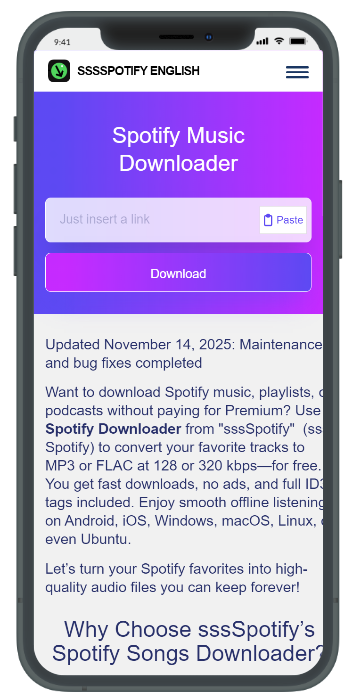
Most of these tools work directly in your web browser without requiring any complicated software installation. They automatically recognize song information like the title, artist, and album, and let you download with your preferred audio quality.
Why Use These Tools?
There are several reasons why people turn to Spotify downloader tools. First and foremost, it’s to listen to music offline without subscribing to Spotify Premium. This is especially useful when you’re traveling, in areas with unstable internet connection, or simply want to save your mobile data.
Additionally, downloading music to your device allows you to use your favorite songs on various devices, including those that don’t support the Spotify app. Some people also want to create their own music collection for long-term use, without worrying about songs being removed from Spotify.
Supported File Formats
Spotify downloaders typically support various audio formats to meet different user needs:
MP3 is the most popular format, compatible with almost all devices and takes up moderate storage space. It’s the balanced choice between quality and file size.
M4A provides better quality than MP3 at the same bitrate and is often preferred by Apple devices. This format is increasingly popular thanks to its efficient compression while maintaining clear audio.
FLAC is a lossless format that delivers the highest audio quality, identical to the original. However, FLAC files are quite large, suitable for those who demand high audio quality and have enough storage space.
WAV is also lossless but takes up even more space than FLAC. This format is typically used in professional music production rather than casual listening.
II. Top 5 Popular Spotify Downloader Websites
A. sssSpotify
Interface and Features
sssSpotify has a simple, clean interface with a dominant blue theme that’s easy to use even for beginners. The homepage features just one large search box in the center—you simply paste your Spotify link and you’re done. This tool supports downloading both individual songs and playlists, with quality options ranging from 128kbps to 320kbps.
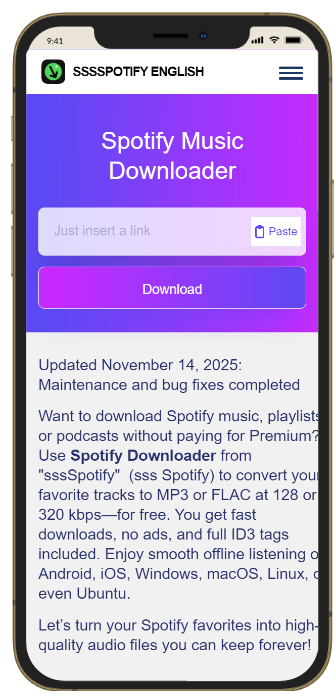
A particularly nice touch is that sssSpotify displays full song information including cover art, artist name, and album before you download, ensuring you don’t make any mistakes.
Advantages
The biggest plus of sssSpotify is that it’s completely free and doesn’t require account registration. You can download music anytime without having to remember passwords or fill out lengthy registration forms.
The processing speed is quite fast—a song typically takes only about 10-20 seconds to be ready for download. The download process is also stable and rarely gets interrupted.
Disadvantages
However, sssSpotify has quite a few pop-up ads that appear when you click the download button. Sometimes you have to close 2-3 ad tabs before you can actually download the file, which can be annoying.
Additionally, this tool has a limit on the number of downloads within a certain time period. If you download too much in one day, you might have to wait a few hours before continuing.
Detailed Usage Guide
First, open the Spotify app on your phone or computer and find the song you want to download. Click the three-dot icon next to the song name, select “Share,” then choose “Copy song link.”
Next, visit sssSpotify download and paste the copied link into the search box in the middle of the page. Click the “Download” button and wait for the tool to process—usually takes about 10-15 seconds.
When the full song information appears, select your desired audio quality (320kbps recommended for best quality). Click the “Download MP3” button—note that 1-2 ad tabs may pop up, just close them.
Finally, the MP3 file will automatically download to your Downloads folder. Check the downloaded file and enjoy your offline music!
B. SpotifyMate
Notable Features
SpotifyMate stands out with its smart playlist processing capability. Unlike many other tools that only allow downloading one song at a time, SpotifyMate can analyze entire playlists and display a list of all songs in them, allowing you to select which ones to download or download everything.
This tool also has an integrated search feature—you can type the song name directly instead of having to copy links from Spotify. The interface is designed in a modern style with an easy-on-the-eyes dark mode, especially useful for nighttime use.
Advantages
Audio quality is SpotifyMate’s strong point, with the ability to download music at bitrates up to 320kbps, equivalent to Spotify Premium quality. Some songs can even be downloaded in FLAC format if the source supports it.
The playlist support feature is very convenient for those who want to download entire albums or favorite playlists at once. You just paste the playlist link, select all songs (or choose selectively), and let the tool automatically process each one.
The user-friendly interface has fewer ads compared to sssSpotify, providing a smoother user experience.
Disadvantages
The downside of SpotifyMate is that it requires email registration to use all features. While the registration process is quite simple, not everyone wants to provide their email to services like this.
After registering, you may receive some promotional emails from them—not many, but still a bit annoying. Playlist download speed can be slower than expected if the playlist has too many songs.
How to Use Effectively
To get the most out of SpotifyMate, register for an account right from the start to unlock all features. Use a secondary email if you’re concerned about spam.
When downloading large playlists, do it at night or when the computer isn’t being used much, as the process can take quite a while. Take advantage of the song selection feature within playlists instead of downloading everything, saving time and storage space.
Choose 256kbps or 320kbps quality for the best listening experience. Only select FLAC if you truly have high-quality headphones/speakers and enough storage space.
C. Other Tools: Spotifydown, Spotdl, and SaveMP3
Spotifydown
Spotifydown is a good choice for those who prioritize absolute simplicity. Its interface is even more minimalist than sssSpotify, with just an input box for links and a download button. The strength is extremely fast processing speed—sometimes just 5-7 seconds for a song.
However, this tool doesn’t support playlists and only allows downloading MP3 format with a fixed bitrate of 256kbps. Ads are at a moderate level—not too annoying but not few either. Suitable for people who only need to download a few individual songs occasionally.
Spotdl
Spotdl is a bit different because it’s a command-line tool, meaning you have to use it through the command window instead of a web interface. It sounds complicated, but it’s actually quite simple once you get used to it.
The biggest advantage is that it’s completely ad-free, has unlimited downloads, and supports all formats. You can download hundreds of songs at once with a single command line. However, Spotdl requires installing Python and some supporting libraries, making it unsuitable for average users unfamiliar with technology.
SaveMP3
SaveMP3 stands out with its preview feature—allowing you to listen to a song before deciding to download it. This is very useful when you’re not sure if you’ve found the right song.
This tool also supports conversion between different formats right on the website. You can download MP3 and then convert it to M4A or WAV if needed. The downside is that the interface is a bit outdated and has quite a few banner ads taking up screen space.
Detailed Comparison Table
To make it easier to visualize, here’s a comparison of the main features:
In terms of speed, sssSpotify and Spotifydown lead with processing times under 15 seconds per song. SpotifyMate and SaveMP3 are average at about 20-30 seconds, while Spotdl can be fast or slow depending on computer configuration and network connection.
For audio quality, SpotifyMate and Spotdl allow downloading at the highest bitrate (up to 320kbps or FLAC). sssSpotify and SaveMP3 support up to 320kbps MP3, while Spotifydown is limited to 256kbps.
Regarding safety, Spotdl is the best as it has no ads or malware risk. SpotifyMate is also quite safe with few ads. The other three tools have more ads but are still acceptable if you’re careful.
For playlist support, only SpotifyMate, Spotdl, and SaveMP3 have this feature. sssSpotify and Spotifydown only allow downloading one song at a time.
Finally, regarding ease of use, sssSpotify and Spotifydown win thanks to their extremely simple interfaces. SpotifyMate and SaveMP3 are medium-level, while Spotdl is the most difficult due to command-line knowledge requirements.
III. Evaluation Criteria and Selection
Download Speed
Speed is a top priority, especially when you need to download multiple songs. A good tool should process a song within 15-20 seconds, from when you paste the link until the file is ready to download.
However, don’t just look at processing speed and ignore actual download speed. Some tools process quickly but have slow download servers, causing a 5MB file to take several minutes to download. Try a few songs to evaluate the overall actual time.
If you regularly download playlists, prioritize tools that can process multiple songs in parallel. This saves a lot of time compared to downloading each song sequentially.
Audio Quality
Audio quality depends on bitrate—the higher, the better, but it also takes up more storage. 128kbps is acceptable for casual listening on phones, 256kbps is good, and 320kbps is the highest quality for MP3.
If you have high-quality headphones or a good sound system, choose tools that support 320kbps or lossless formats like FLAC. However, with regular headphones, the difference between 256kbps and 320kbps is almost imperceptible.
A small tip is to check the file information after downloading. Some tools advertise 320kbps support but actually only provide 192kbps or lower. You can use software like MediaInfo to check the actual bitrate.
Security and Safety
This is an extremely important criterion that’s often overlooked. Many free downloader websites make money from advertising, and not all ads are safe. Some may contain malware, viruses, or coin-mining scripts when you open the page.
Check if the tool requires installing any suspicious software. Reputable tools will work entirely in the browser without requiring any additional installations. If there are popups asking you to install extensions or update Flash Player, that’s a warning sign.
Use browsers with built-in ad-blockers like Brave, or install ad-blocking extensions like uBlock Origin. This not only makes the experience more pleasant but also protects you from malicious ads.
Number of Advertisements
Ads are unavoidable with free tools, but the level varies greatly. Some websites have ads at an acceptable level—a few banners on the side that don’t greatly affect usage.
However, some sites make you “fight” through a series of popups. Each click opens a new popup; sometimes you have to close 4-5 ad tabs before you can actually download the file. This is not only annoying but also poses security risks.
A good tool should balance displaying ads (to maintain operations) and user experience. Static banner ads on the sides are acceptable, but constant popups or auto-playing video ads are signs to find another tool.
Batch Download Support
The ability to download playlists or multiple songs at once is a very convenient feature if you want to build an offline music library. Instead of having to copy-paste each link, you just paste the playlist link and let the tool handle it automatically.
However, not every tool that supports playlists does this feature well. Some only allow downloading a maximum of 10-20 songs at a time, or process very slowly when the playlist has many songs. Read the limits carefully and try with a small playlist before downloading large ones.
Also note whether the tool allows pausing and resuming the download process. This is useful when you’re downloading a large playlist but need to turn off your computer midway.
IV. Tips for Effective Use
Tips for Faster Downloads
To download music as quickly as possible, use a stable and fast internet connection. However, even with slow internet, you can optimize by downloading during off-peak hours—usually late at night or early morning when fewer users are accessing.
Avoid opening multiple download tabs at the same time on the same tool. This not only doesn’t speed things up but can also cause the server to refuse processing or temporarily block your IP.
If possible, choose tools with servers near your region. Some international tools are slower when accessed from Vietnam compared to Asia-region tools.
When downloading playlists, do it when you don’t need to use your computer for other things. Open the tab and let it run automatically while you do other work—this saves time and avoids worry.
How to Avoid Ads and Malware
Installing an ad-blocker is the first and most important step. uBlock Origin is the best free choice currently, lightweight and effectively blocks most ads. Brave browser is also a good choice with built-in ad-blocking features.
When clicking the download button, click slowly and observe carefully. If a popup appears, don’t panic and click randomly. Close the popup with the X button or close the entire tab if needed, then click the download button again.
Never enter personal information like phone numbers or credit card numbers on downloader sites. These sites don’t need that information to operate; if they ask, it’s definitely a scam.
Use virus scanners to check files after downloading, especially if you’re using a new unfamiliar tool. Windows Defender built into Windows 10/11 is sufficient, and on Mac you don’t need to worry much since malware rarely targets audio files.
Managing Downloaded Files
Create a separate folder for music downloaded from Spotify instead of mixing it up in the Downloads folder. You can organize by artist, album, or genre as you like.
Use music management software like MusicBee (Windows) or iTunes/Music (Mac) to automatically organize, add metadata information, and create playlists. These programs can automatically fetch album artwork and song information from the internet.
If you download a lot of music, back it up regularly to an external hard drive or cloud storage. Losing hundreds of songs due to hard drive failure or viruses is very unfortunate.
Check file quality right after downloading. Some tools may download corrupted files or wrong songs. Listen to the first few seconds to ensure it’s the right song and has no audio errors.
V. Conclusion
Tool Recommendations for Different Needs
If you only need to download a few songs occasionally and prioritize simplicity, sssSpotify or Spotifydown are the best choices. No registration required, quick to use, and although they have ads, they’re acceptable.
For those who want to download playlists or multiple songs at once with high quality, SpotifyMate is worth trying. Email registration is a small trade-off for a better experience and batch download capability.
If you’re tech-savvy and want the most powerful tool with no limits and no ads, Spotdl is the perfect choice. Although more complex at first, once set up it becomes very convenient and efficient.
SaveMP3 is suitable for those who like to preview before downloading or need to convert between different formats.
A Note on Legal Issues
It’s important to note that downloading music from Spotify may violate Spotify’s terms of use and copyright laws. Spotify provides offline listening features in its Premium package as the legal way to listen to music without the internet.
Songs on Spotify are copyright-protected, and downloading them for personal use falls in a legal gray area. In many countries, this can be considered a violation, especially if you share downloaded files with others or use them for commercial purposes.
This article is for informational purposes only, helping you understand the available tools and how they work. The decision to use them or not is yours, but consider subscribing to Spotify Premium as a legal way to support your favorite artists and enjoy music to the fullest.
If you truly love music and want artists to continue creating, paying for legal streaming services is the best way to show your support.
Note: If you want to download videos from other social media platforms like Threads or Rednote (Xiaohongshu), try using SnapThreads, https://sssThread.com, or https://rednotedownloader.com .